Comparing Different HDMI Standards
HDMI cable standards differ: High Speed is rated 10.2 Gbps, Premium High Speed 18 Gbps for 4K60, and Ultra High Speed 48 Gbps for 8K60 and 4K120.



HDMI cables are an integral part of your home and professional life. They are a unique piece of technology that has become commonplace. HDMI cables connect devices by transmitting audio and visual signals. The single cable provides a convenient way to enjoy high-quality content without a bunch of clutter. One of the main benefits of HDMI cables is that the quality is not compromised. While the cables usually do not cause a lot of trouble, you may encounter some issues. Below, you will find how to fix HDMI no signal connection issue.
If you experience signal issues when you connect your HDMI, there are a number of strategies to troubleshoot the issue. Consider the following if you experience issues with your HDMI cable.
You may need to switch your input source. You can do this by pressing the “input” or “source” button on your remote. Switch the input source to your HDMI port. If you have multiple ports, be sure to select the right one.
Try updating the chipset and graphics drivers. Update the drivers to see if the issue is resolved. This is a great option for those who are tech-savvy with good computer skills. You can search online how to do it or you can download software that can correct the driver issue. The software program can scan and detect driver issues quickly and effectively.
You can try to troubleshoot your connection issue by enabling the HDMI connection setting. If you want to connect your phone or tablet to the television, be sure the HDMI connection setting is enabled. You can do this on your device by going to settings, display entries, and then selecting the HDMI connection. This can be a quick and easy fix.
Before giving up on your HDMI cable, try unplugging and plugging in the power cable of your television or monitor. Be sure to wait a few seconds after you unplug the television or monitor.
Another common solution includes disconnecting all of your HDMI sources and then reconnecting them. Be sure to reconnect the HDMI cables one at a time. After each time you plug one in, turn on the specific device. Repeat this process for each device and HDMI port.
If none of the above strategies don’t solve your problem, try a factory reset on your television or monitor. A factory reset, also referred to as a master reset, is a process that restores your device to the original settings. These are often referred to as the “factory settings.” However, it’s important to note that this erases all of your user data, settings, and applications on the device. Use caution if you are using this option to address your connection issues.
HDMI cables are essential for your home entertainment systems and in the workplace. Professional tech setups can benefit from quality HDMI cables and an HDMI duplicator. An HDMI duplicator, also referred to as a splitter, is helpful if you have multiple outputs. The technology allows you to display the same audio and video content on multiple screens at the same time. These are commonly used in conference rooms, at trade shows, and can even be used in your home theater.
No matter what your audio-visual connectivity needs are, the team at Kanex Pro can provide you with expert support. They carry a complete selection of audio-visual products for your home or professional needs. Contact Kanex Pro today for support!
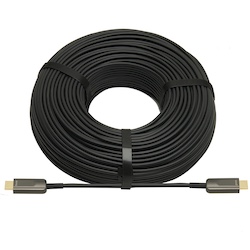
HDMI cable standards differ: High Speed is rated 10.2 Gbps, Premium High Speed 18 Gbps for 4K60, and Ultra High Speed 48 Gbps for 8K60 and 4K120.
HDMI cables have become the standard in many homes and offices over the last decade. They are helpful cables that transmit audio and video from…
HDMI cables are a necessary part of any tech setup at home or at work. They provide the clear and effective transmission of both audio and video…
KanexPro sells direct to dealers, resellers, installers and integrators, and through distribution. Whichever way you buy, the same engineers answer the phone.
The trade store: your own account, live stock, reordering, and a first look at new products.
Go to the trade store →Distribution and authorised resellers across the US and beyond.
See where to buy →Design help on extenders, matrix and AV over IP before you spec it.
Ask an engineer →