Troubleshooting & FAQ: Flex Matrix
No Signal on an Output Verify the output card is fully seated in the chassis slot — remove and re-seat if uncertain. Confirm the source is active and…


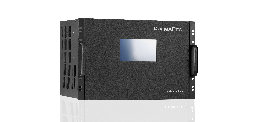 FLEX-MF24X36
24×36 4K60 Modular Matrix Switcher with Built-In Video Wall
Large-Venue 4K60 Matrix — 24 In, 36 Out — Video Wall, Quad View & Zone Control
Product page →
FLEX-MF24X36
24×36 4K60 Modular Matrix Switcher with Built-In Video Wall
Large-Venue 4K60 Matrix — 24 In, 36 Out — Video Wall, Quad View & Zone Control
Product page →
Each output on the FLEX-MF24X36 scales independently. You can set each output’s resolution on its own, whatever the source sends and whatever the other outputs are doing. One chassis can feed 4K displays, 1080p screens and a WUXGA projector together, with no separate scalers. The chassis carries up to 3840×2160 at 60Hz 4:4:4 (8-bit).
Set output resolution from the front panel or by command.
Each output takes Auto or one of 15 fixed timings. The scaler command, the Type B commands, the video wall “time” parameter and quad view all use these index numbers.
| Index | Output timing |
|---|---|
| 01 | Auto |
| 02 | 480p60 |
| 03 | 576p50 |
| 04 | 720p50 |
| 05 | 720p59 |
| 06 | 720p60 |
| 07 | 1080p50 |
| 08 | 1080p59 |
| 09 | 1080p60 |
| 10 | 4K30 |
| 11 | 4K50 |
| 12 | 4K59 |
| 13 | 4K60 |
| 14 | 1024×768@60 |
| 15 | 1280×1024@60 |
| 16 | 1920×1200@60 |
Before relying on Auto (01), connect the display and confirm the resolution the output delivers. A video wall takes its output timing from the “time” parameter (2–16) when it is created, and quad view uses the same index.
Confirm 480p60, 576p50 and the 59 Hz timings on the unit, with the display connected, before a design depends on them.
Not with a fixed timing, because 1280×800 is not in the list. Test Auto with the projector connected on site. If Auto does not give a usable picture, choose a listed timing that the projector’s own documentation says it accepts. A WUXGA (1920×1200) projector matches timing 16 directly.
EDID is the data a display sends a source to describe the resolutions and audio formats it supports. On the FLEX-MF24X36, EDID is set per input. If an output shows no video, set the input’s EDID to match the display’s native resolution.
| EDID index (z) | EDID presented to the source |
|---|---|
| 1 | 1080p, stereo |
| 2 | 1080p, 5.1 |
| 3 | 1080p, 7.1 |
| 10 | 4K30 4:4:4, stereo |
| 11 | 4K30 4:4:4, 5.1 |
| 12 | 4K30 4:4:4, 7.1 |
| 16 | 4K60 4:4:4, stereo |
| 17 | 4K60 4:4:4, 5.1 |
| 18 | 4K60 4:4:4, 7.1 |
| 19 | 4K60 4:4:4, stereo, HDR |
| 24–39 | Copy from HDMI output 1–16 |
Use the indexes in this table. If you set any other value, read the input back with “r edid in x!” and confirm the EDID it presents before relying on it.
Use index 19 (4K60 4:4:4, stereo, HDR). It is the only HDR preset in the table: presets 17 and 18 (4K60 4:4:4 with 5.1 or 7.1) are not HDR presets. For HDR with multichannel audio, copy the EDID of an HDR display on HDMI outputs 1–16 whose EDID also lists the multichannel formats you need, then check the result with “r edid in x!”. Presets 24–39 copy the EDID from HDMI outputs 1–16; for an HDR display on any other output, use index 19. Test the result on site.
A large venue running the FLEX-MF24X36 could set up its zones like this:
All of these run from the same chassis and the same sources. CAT output zones use FLEX-CATRX receivers.
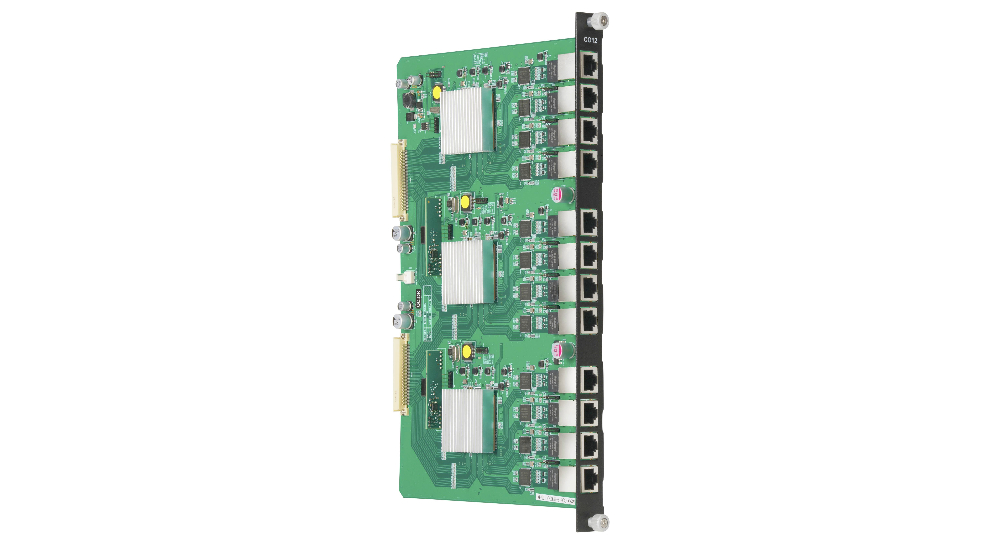
No Signal on an Output Verify the output card is fully seated in the chassis slot — remove and re-seat if uncertain. Confirm the source is active and…
FLEX-MF chassis have a built-in video wall with bezel compensation, up to 4×3 (12 displays) per wall on FLEX-MF16X20, FLEX-MF24X36 and FLEX-MF24X60.
What is the FLEX Matrix? The KanexPro FLEX Matrix is a modular 4K60 matrix switcher — a single chassis that routes any HDMI source to any display, at…
KanexPro sells direct to dealers, resellers, installers and integrators, and through distribution. Whichever way you buy, the same engineers answer the phone.
The trade store: your own account, live stock, reordering, and a first look at new products.
Go to the trade store →Distribution and authorised resellers across the US and beyond.
See where to buy →Design help on extenders, matrix and AV over IP before you spec it.
Ask an engineer →