Downloading KanexPro software and firmware safely
How KanexPro checks firmware and software downloads, how to verify a file's SHA-256 fingerprint, what the Windows SmartScreen warning means, and…


Yes. The FLEX chassis supports mixed card configurations. You can install HDMI output cards (FLEX-HDMI12OUT) and CATx output cards (FLEX-CAT12OUT) in different output slots simultaneously.
Yes. The FLEX-MF8X10 chassis can be expanded by adding additional input and output cards up to its maximum slot capacity. The system scales from 8×10 up to 24×60 across the chassis family.
No. Video wall functionality is built into the FLEX chassis — no external controller hardware is required.
The FLEX-MF24X60 supports up to 60 outputs, all of which can be used in video wall configurations depending on the layout selected.
Yes — see TAA Compliance: Flex Matrix Series for full details.
RS-232, TCP/IP, and a REST API. Compatible with Crestron, AMX, Savant, Control4, and any control system supporting TCP/IP or RS-232 drivers.
Power over Cable (PoC) delivers power from the FLEX-CAT12OUT output card to the FLEX-CATRX receiver through the CAT cable — no separate power supply is needed at the receiver end.
How KanexPro checks firmware and software downloads, how to verify a file's SHA-256 fingerprint, what the Windows SmartScreen warning means, and…
Boardrooms, conference rooms, campuses, lobbies — real-world deployment scenarios Corporate AV is among the most practical deployment target for…
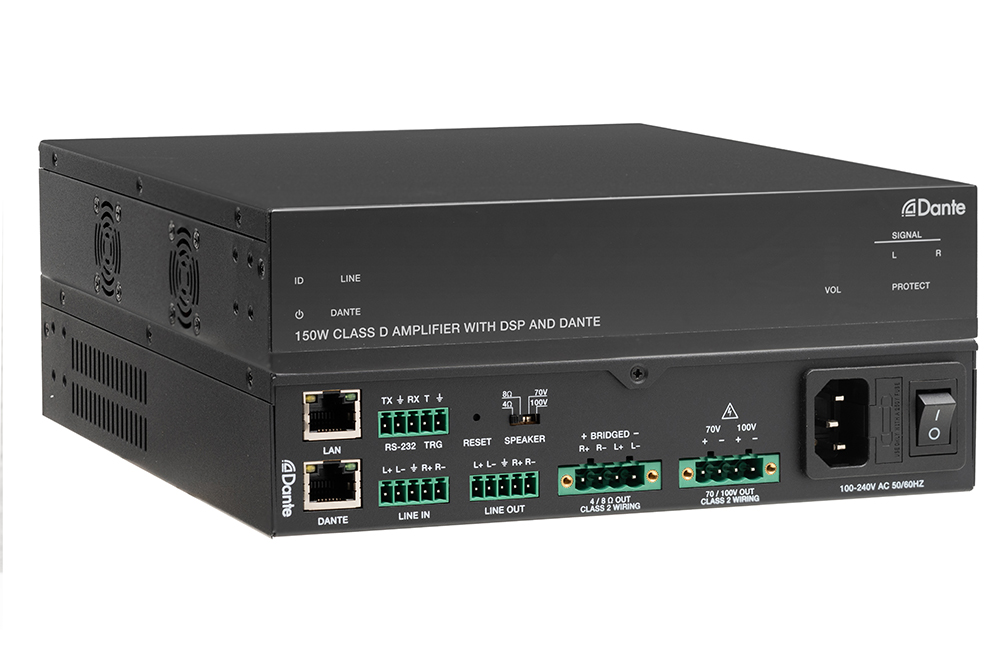
Setup Guide Configuring Your Network Switch for Dante Required switch settings for all KanexPro AUD-DTE- Dante products Dante requires a managed…
KanexPro sells direct to dealers, resellers, installers and integrators, and through distribution. Whichever way you buy, the same engineers answer the phone.
The trade store: your own account, live stock, reordering, and a first look at new products.
Go to the trade store →Distribution and authorised resellers across the US and beyond.
See where to buy →Design help on extenders, matrix and AV over IP before you spec it.
Ask an engineer →