VW-MVIEW4X1 Controller Software, Firmware, RS-232 Commands
The VW-MVIEW4X1 zip holds Controller 1.0.11, firmware MCU V1.00.15 and scaler 2025-03-03, and both guides. All work over RS-232 at 115200 baud.


KanexPro publishes firmware, control software and drivers for its products on each product page, under Resources. This is how we keep those downloads safe, and how you can check a file before you install it.
Only from the product's page on kanexpro.com, or from a link a KanexPro support agent sends you from a kanexpro.com address. We never send software as an email attachment from another domain, and we never ask you to install remote-access tools.
A fingerprint (SHA-256 hash) proves the file you downloaded is exactly the one we published. On Windows, open Command Prompt in the download folder and run certutil -hashfile FILENAME SHA256. On macOS, open Terminal and run shasum -a 256 FILENAME. Compare the result with the value in the product's knowledge base article. If it does not match, do not run the file: delete it and download it again from the product page.
Some control software installers are not yet digitally signed, so Windows SmartScreen may name the publisher as unknown. If the fingerprint matches, choose More info, then Run anyway. We are moving our installers to signed builds; a signed installer shows KanexPro as a verified publisher.
If a file looks wrong, a fingerprint does not match, or an update stops part way, contact us at kanexpro.com/support before you try again.
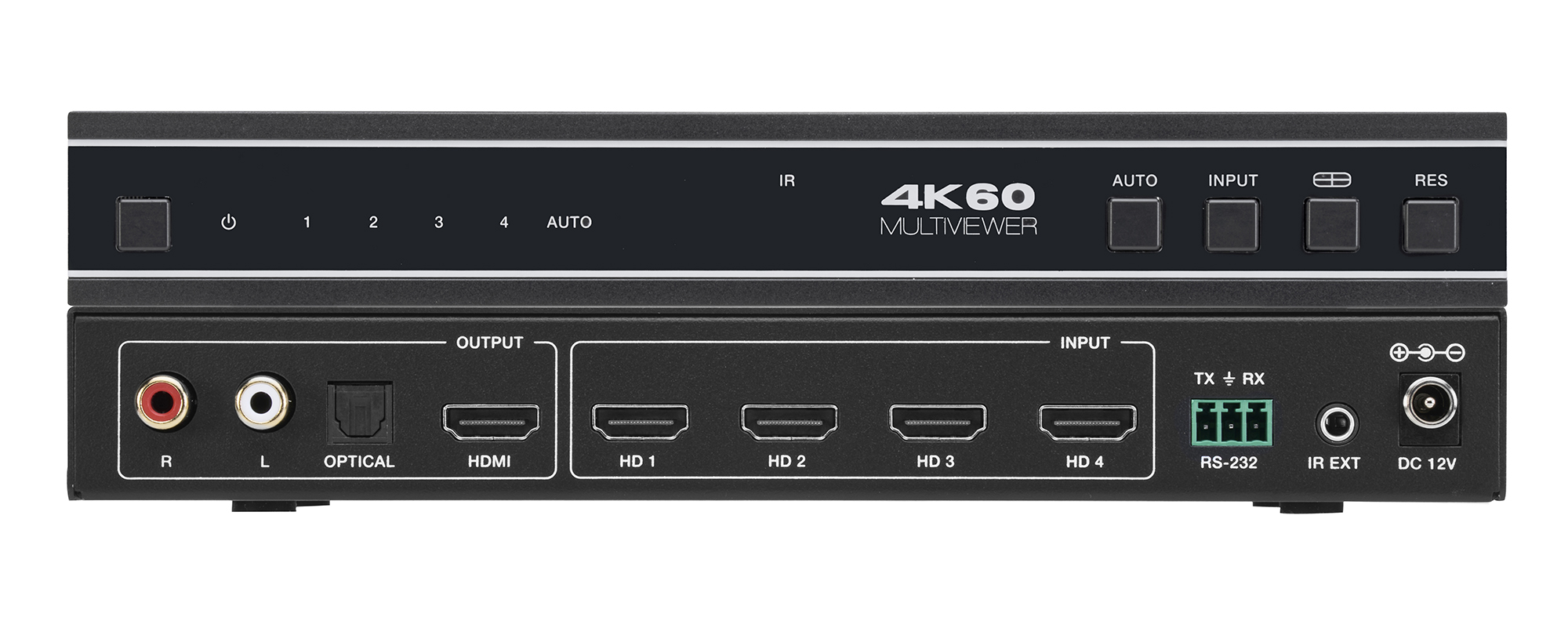
The VW-MVIEW4X1 zip holds Controller 1.0.11, firmware MCU V1.00.15 and scaler 2025-03-03, and both guides. All work over RS-232 at 115200 baud.
Boardrooms, conference rooms, campuses, lobbies — real-world deployment scenarios Corporate AV is among the most practical deployment target for…
Setup Guide Configuring Your Network Switch for Dante Required switch settings for all KanexPro AUD-DTE- Dante products Dante requires a managed…
KanexPro sells direct to dealers, resellers, installers and integrators, and through distribution. Whichever way you buy, the same engineers answer the phone.
The trade store: your own account, live stock, reordering, and a first look at new products.
Go to the trade store →Distribution and authorised resellers across the US and beyond.
See where to buy →Design help on extenders, matrix and AV over IP before you spec it.
Ask an engineer →