Downloading KanexPro software and firmware safely
How KanexPro checks firmware and software downloads, how to verify a file's SHA-256 fingerprint, what the Windows SmartScreen warning means, and…


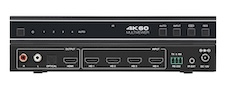 VW-MVIEW4X1
HDMI 4x1 Quad Multi-View Seamless Switcher 4K@60 4:4:4
Monitor Four 4K Sources on a Single Display with Seamless Switching, 8 Display Modes & Audio…
Product page →
VW-MVIEW4X1
HDMI 4x1 Quad Multi-View Seamless Switcher 4K@60 4:4:4
Monitor Four 4K Sources on a Single Display with Seamless Switching, 8 Display Modes & Audio…
Product page →
The software that controls the VW-MVIEW4X1 from a PC is called the 4K60 Multi-Viewer Controller, version 1.0.11. It comes in the same download as the current firmware (MCU V1.00.15 and scaler 2025-03-03), the Controller Software and Firmware Update Guide and the RS-232 Command Reference. The software, firmware updates and third-party control systems all connect through the rear-panel RS-232 port at 115200 baud.
Applies to: VW-MVIEW4X1 HDMI 4x1 Quad Multi-View Seamless Switcher
VW-MVIEW4X1 Firmware package (zip) contains: VW-MVIEW4X1_SCALER_20250303.bin, VW-MVIEW4X1_MCU_V1.00.15.bin, VW-MVIEW4X1 Product Manual.pdf, VW-MVIEW4X1 Controller Software and Firmware Update Guide.pdf, VW-MVIEW4X1 RS-232 Command Reference.pdf, 4K60 Multi-Viewer Controller Setup 1.0.11.exe and README.txt.
Run 4K60 Multi-Viewer Controller Setup 1.0.11.exe from the zip above. Choose Anyone who uses this computer (all users), pick the installation folder, click Install, then click Finish. The software needs firmware MCU V1.00.09 and scaler 2022-12-22 or later. It runs on Windows. You can use it to set the display mode, the source in each window, PIP position and size, output resolution, HDCP, audio, EDID, factory reset and reboot.
You need a Windows PC with a serial (COM) port, or a USB-to-RS-232 adapter with its driver installed. Wire the supplied 3-pin 3.81mm Phoenix connector so that the PC's TX goes to the unit's RX, the PC's RX goes to the unit's TX, and ground goes to ground. With the unit powered on and connected to its display, open the software. Select COM Control Mode, choose the COM port and 115200 baud, then click Connect. When the status bar shows Connect Succeed, Device Information shows the unit and its firmware. This model does not support network control, so TCP/IP Control Mode stays greyed out.
Check that the COM port is correct, the baud rate is 115200 and TX and RX are crossed between the PC and the unit. Only COM Control Mode is supported on this model.
The firmware version is shown under Device Information in the software. You can also send r fw version! from a terminal program. Update only to fix a problem the release notes describe. Keep the unit powered and the RS-232 cable connected until the update finishes, because an interrupted update can leave the unit unable to start.
s window source osd x! and r window source osd!.Commands are plain ASCII text ending with !. Commands that start with s set a value and commands that start with r read it back. Send help! to list every command the unit accepts (command set version 1.00.04). Commonly used commands:
s multiview x!: display mode (1 single screen, 2 PIP, 3 PBP, 4 triple screen, 5 quad screen)s window x in y!: the input (1–4) shown in a window (1–4)s in source x!: routes an input to the output in single screen modes output res x!: output resolution (1–15, where 15 is AUTO, the default)s output audio x!: audio source (0 follows window 1, 1–4 selects an HDMI input)s input EDID x!: input EDID mode (1–19)reboot! and reset!: restart the unit, or return it to factory defaultsThe RS-232 Command Reference in the download lists every parameter, including PIP position and size, window borders and the aspect ratio for each layout.
| Software | 4K60 Multi-Viewer Controller for Windows, version 1.0.11 |
| Connection | RS-232, the 3-pin 3.81mm Phoenix connector on the rear panel |
| Serial settings | 115200 baud, 8 data bits, 1 stop bit, no parity |
| Current firmware | MCU V1.00.15 and scaler 2025-03-03 (released May 2025) |
| Firmware the software needs | MCU V1.00.09 and scaler 2022-12-22, or later |
| Network control | Not supported on this model: TCP/IP Control Mode stays greyed out |
Yes. The package was virus-scanned in full on 2026-10-01, the installer and everything inside it included, and no threats were found. Download it only from the VW-MVIEW4X1 product page on kanexpro.com.
To check that your copy is exactly the one we published, compare its SHA-256 fingerprint. On Windows, open Command Prompt in the download folder and run certutil -hashfile 3887-VW-MVIEW4X1-Firmware.zip SHA256. The result should be:
| Package (zip) | aea61eb7fe5c82d7afb3923005c7a3618b9a5738573c6557738ee70a03353bcc |
| Controller software installer | d0fadb19d20f6d8322bbc3861210b0a5b957bdf2d3a9a2a36df000990797fe6a |
When you run the installer, Windows may show Windows protected your PC with an unknown publisher, because the installer is not yet digitally signed. If the fingerprint matches, choose More info and then Run anyway. A signed installer will replace this one, and the fingerprints above will be updated with it.
How KanexPro checks firmware and software downloads, how to verify a file's SHA-256 fingerprint, what the Windows SmartScreen warning means, and…
Overview KanexPro AV over IP requires a managed switch with specific settings. This article lists tested and recommended switch models for JPEG2000…
Overview The FLEX chassis supports Quad View mode — displaying up to four independent sources simultaneously on a single display output in a divided…
KanexPro sells direct to dealers, resellers, installers and integrators, and through distribution. Whichever way you buy, the same engineers answer the phone.
The trade store: your own account, live stock, reordering, and a first look at new products.
Go to the trade store →Distribution and authorised resellers across the US and beyond.
See where to buy →Design help on extenders, matrix and AV over IP before you spec it.
Ask an engineer →