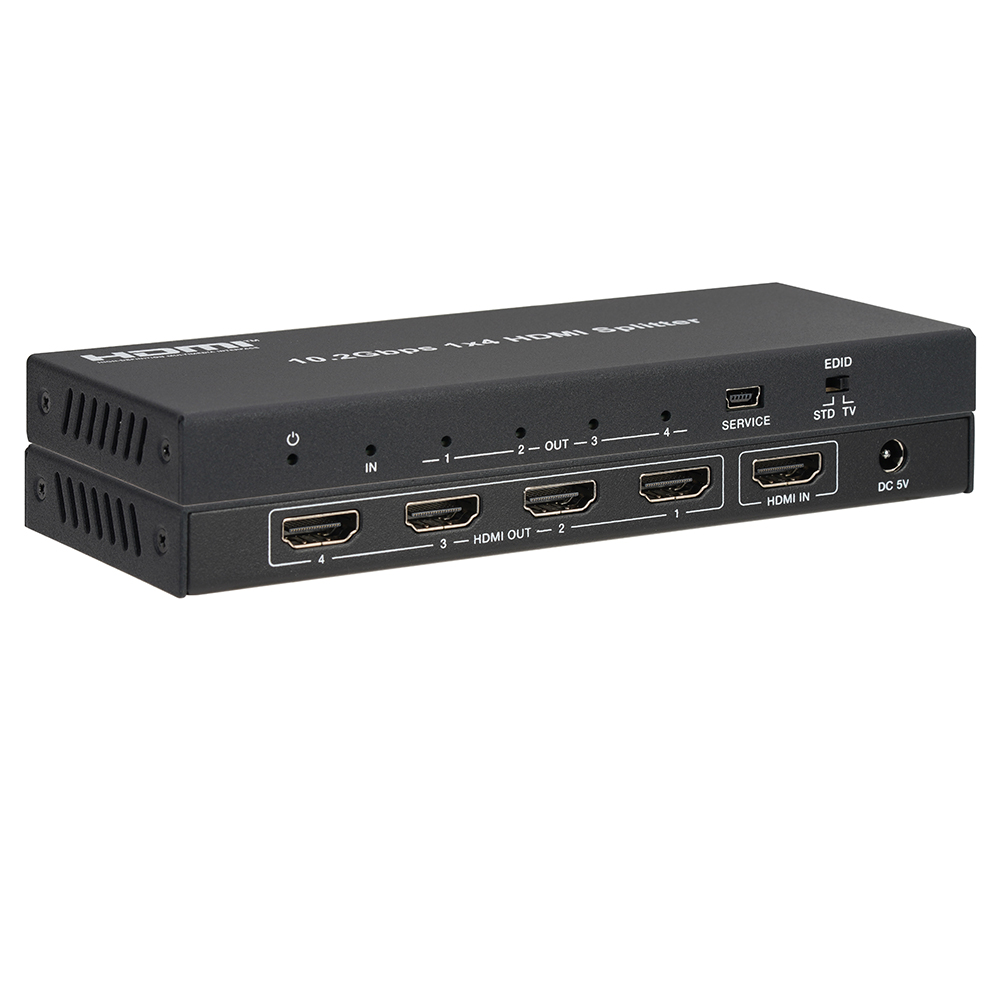
SP-HD1X44K 1x4 HDMI Splitter: 4K, HDR, EDID and Power
The SP-HD1X44K sends one HDMI source to four displays at up to 4K2K@60Hz 4:2:0 with HDR10, HDR10+ and Dolby Vision, HDCP 1.4 and STD/TV EDID modes.


 SP-HD1X28K
8K 1×2 HDMI 2.1 Splitter with Auto Downscaling
48Gbps, HDCP 2.3, HDR?SDR Converting, Dolby Atmos/DTS:X, EDID DIP
Product page →
SP-HD1X28K
8K 1×2 HDMI 2.1 Splitter with Auto Downscaling
48Gbps, HDCP 2.3, HDR?SDR Converting, Dolby Atmos/DTS:X, EDID DIP
Product page →
The KanexPro SP-HD1X28K is a one-input, two-output HDMI 2.1 splitter. It takes a single HDMI source and mirrors that signal to two displays simultaneously, both carrying the same content. It is built around the full 48Gbps HDMI 2.1 bandwidth (48Gbps FRL and 18Gbps TMDS). It supports resolutions up to 8K@60Hz 4:2:0 12-bit and 4K@120Hz 4:4:4 12-bit, HDCP 2.3, HDR-to-SDR conversion, Dolby Atmos and DTS:X audio, and EDID management via an onboard 8-mode DIP switch. It also supports the HDMI 2.1 VRR, ALLM, QMS, QFT and SBTM features.
This is a distribution device, not a switcher. There is one source connection; if you need to select between multiple sources, you are looking at the wrong category. The SP-HD1X28K exists to drive two sinks from one player, PC, or console, for example a display and a projector, or a confidence monitor alongside a main screen.
HDMI 2.1 at its full 48Gbps is what allows uncompressed 8K and high-bandwidth HDR formats to pass without the splitter becoming the bottleneck. Many older splitters are limited to HDMI 2.0-class bandwidth and will silently drop a 2.1 source down to a lower mode or fail to sync. Because the SP-HD1X28K carries the full 48Gbps, it is appropriate in front of sources that actually output HDMI 2.1 signaling. Whether any given resolution and frame-rate combination passes end to end still depends on your source, your cables, and both displays. The splitter does not create capability the sinks lack.
It is rated up to 8K@60Hz 4:2:0 12-bit and 4K@120Hz 4:4:4 12-bit, so plan 8K60 at 4:2:0; 8K@60Hz 4:4:4 is outside its rating. For 8K, use Ultra High Speed HDMI cables no longer than 3 m.
The common failure in a 1×2 layout is two displays with different capabilities. If one output can accept 8K and the other cannot, a splitter without scaling forces the source to serve the lowest common denominator, or the weaker display simply goes dark. The SP-HD1X28K's auto downscaling addresses this: a lower-resolution display still shows a picture while the capable display keeps receiving the higher-resolution feed. You can pair mismatched screens without manually reconfiguring the source.
Downscaling is independent per output. The splitter reads each display's EDID and scales 8K to 4K, or 8K or 4K to 1080p, only where that display needs it. For example:
Two limits apply. Downscaling does not work with an 8K DSC (Display Stream Compression) input, or with resolutions the splitter does not support. And a display in DVI mode that receives downscaled 1080p shows a picture with no sound.
EDID tells the source what the connected displays can handle. In a two-display split, conflicting or missing EDID data is a frequent cause of no-signal and handshake problems. The SP-HD1X28K provides EDID management through an onboard 8-mode DIP switch, so you can fix the EDID the source sees rather than relying on whatever the two displays negotiate.
Set the DIP switch during commissioning. The factory default, 111, copies the EDID of the device on OUT 1, so in that position the source sees the video and audio capabilities of the OUT 1 device only. At the default, connect the more capable display to OUT 1, for example an 8K HDR TV on OUT 1 and a 4K SDR TV on OUT 2, and let the splitter downscale and convert for OUT 2. If an AVR or soundbar is on one of the outputs, read the audio notes below before choosing. The other seven positions fix the EDID the source sees:
| DIP | EDID mode |
|---|---|
| 111 | Copy OUT 1 EDID (default) |
| 110 | 4K60 4:4:4, 2.0CH |
| 101 | FRL12G 8K HDR, 2.0CH |
| 100 | FRL12G 8K HDR, 5.1CH |
| 011 | FRL12G 8K HDR, 7.1CH |
| 010 | FRL10G 8K HDR, 2.0CH |
| 001 | FRL10G 8K HDR, 5.1CH |
| 000 | FRL10G 8K HDR, 7.1CH |
Each fixed mode also declares an audio channel count (2.0, 5.1 or 7.1). If a surround system is only getting stereo, check whether a 2.0CH mode is selected, or, at the default 111, whether the device on OUT 1 accepts only stereo. Which fixed mode is correct depends on your specific displays and the resolution you want the source to output. The USB Type-C SERVICE port is for firmware updates only, not for control.
The unit supports HDR-to-SDR conversion, which is useful when one path in the install cannot process HDR metadata. The converted output avoids the washed-out or black-screen results that mismatched HDR handling produces. Conversion is per output: an HDR display still receives HDR while an SDR display on the other output receives converted SDR. HDR10, HDR10+, Dolby Vision and HLG pass through.
On the audio side, the splitter passes high-bitrate immersive formats including Dolby Atmos and DTS:X, as well as LPCM 7.1, Dolby TrueHD, DTS-HD Master Audio and DSD. An AVR or soundbar connected to one of the HDMI outputs receives the embedded audio alongside the video, but only in the formats the source chooses to send, and the source chooses from the EDID it sees. At the default DIP setting, 111, that is the EDID of the device on OUT 1: with a stereo-only TV on OUT 1 and an AVR on OUT 2, the source sends only the audio the TV accepts. To get surround audio to the AVR, use one of two settings:
Either way, check that the display on the other output can play the audio the source will then send. Then confirm on the AVR which format it is receiving. The fixed modes set a channel count, not an audio format. If you chose a fixed mode and the AVR does not show the format you expect, such as Dolby Atmos, move the AVR to OUT 1 and return the DIP switch to 111.
The SP-HD1X28K is HDCP 2.3 compliant, matching current protected-content requirements. Both displays in the split must themselves be HDCP compliant for protected sources to play; the splitter does not strip or bypass protection.
No. It has no audio de-embedding output. Audio passes through HDMI only, so it reaches only the devices connected to OUT 1 and OUT 2. If the design needs audio broken out to an external amplifier, soundbar or speaker system separately from the displays, use the SP-1X2A8K, a 1×2 HDMI 2.1 splitter with an audio de-embedding output. Check the trade-offs first. The SP-1X2A8K is a 40Gbps unit rated up to 8K@60Hz 4:2:0 10-bit, 8K@30Hz 4:4:4 10-bit and 4K@120Hz 4:4:4 10-bit. Its rated audio formats are LPCM, Dolby Digital and Dolby Digital Plus, Dolby TrueHD, DTS, DTS-HD Master Audio and DSD; Dolby Atmos and DTS:X are not among them. Where auto downscaling is needed, use the SP-HD1X28K or SP-HD1X48K instead.
Use Ultra High Speed HDMI cables, 3 m maximum, for 8K. Treat 3 m as the limit on any run that may carry 8K, input or output, and check the cables first when an output has no picture.
Work through these checks in order:
The front LEDs show where the signal stops: the Power LED is red when the unit is powered, the IN LED is green when the source is active, and each OUT LED is green when that output is active.
Downscaling does not work with an 8K DSC input, so first check whether the source is sending compressed 8K. Next, confirm the display's EDID is being read correctly by returning the EDID DIP switch to 111, the default. Then power-cycle both the splitter and the displays.
A display in DVI mode that receives downscaled 1080p outputs no audio. Make sure the display supports HDMI audio at the downscaled resolution.
Use the SP-HD1X28K when you have one 8K/HDMI 2.1 source and need identical output on exactly two displays, particularly where those displays differ in capability or where EDID and HDR mismatches have caused sync problems. For four outputs with the same 48Gbps, auto-downscaling feature set, the SP-HD1X48K is the 1×4 version. For audio breakout, see the SP-1X2A8K above. For source selection, specify a different KanexPro product.
KanexPro sells direct to dealers, resellers, installers and integrators, and through distribution. Whichever way you buy, the same engineers answer the phone.
The trade store: your own account, live stock, reordering, and a first look at new products.
Go to the trade store →Distribution and authorised resellers across the US and beyond.
See where to buy →Design help on extenders, matrix and AV over IP before you spec it.
Ask an engineer →