Small Meeting Rooms Don't Need a Separate Audio or Control Processor
In a small meeting room, a presentation switcher with a built-in audio matrix and display control can replace the separate DSP and control processor.


A presentation switch is easy to describe in a spec sheet and hard to picture from one. The client reads "multiview, presets, auto switching" and nods, then sees the room for the first time at handover. That is a late moment to learn they wanted the laptop to take over the screen the moment it is plugged in, or that two screens should show different things.
Our view is that the people who will use the room should try the controls before anything is specified. Not a video of them, and not a drawing: the actual buttons they will press on a Monday morning.
The SW-4X2PS-70M and SW-5X1PS-70M product pages now have a Demo button, next to Buy Direct. It opens a simulated switch in the browser, on a laptop or a phone, with no sign-in and nothing to install. It is RelayAV's box page and remote, the same screens KanexPro's control app shows for a real switch, with the same controls.

The SW-4X2PS-70M has two outputs, and each one has its own layout. Put a laptop on USB-C full screen on the main display, and show two sources side by side, or a picture-in-picture, on the second. Save that as a preset, change everything, and tap the preset to bring the room back in one press. Blank and Freeze work per output, so a teacher can freeze the projector while they find the next slide.
The SW-5X1PS-70M takes two USB-C and three HDMI sources to one picture, with Single, PIP, PBP, Triple and Quad layouts. The demo shows the setting that matters most in a boardroom: switch to a newly plugged-in laptop by itself, and fall back to the room PC when it leaves. The client can try it and decide whether that is what they want, before anyone writes it into a spec.

Each demo has Amy, the built-in Product Expert, beside the controls. Ask her how to wire the switch, which setup suits the room, or how it fits with Crestron, Control4 or RTI. If you ask her to change something, she offers a button, and nothing happens until you press it.
Send the client the product page and ask them to tap Demo. Or open it on your phone across the table and hand it over. Either way, the conversation moves from what the switch can do to what this room should do, which is the conversation that ends in a correct quote. If something in the demo is missing or confusing, the Feedback button reaches the KanexPro team directly.
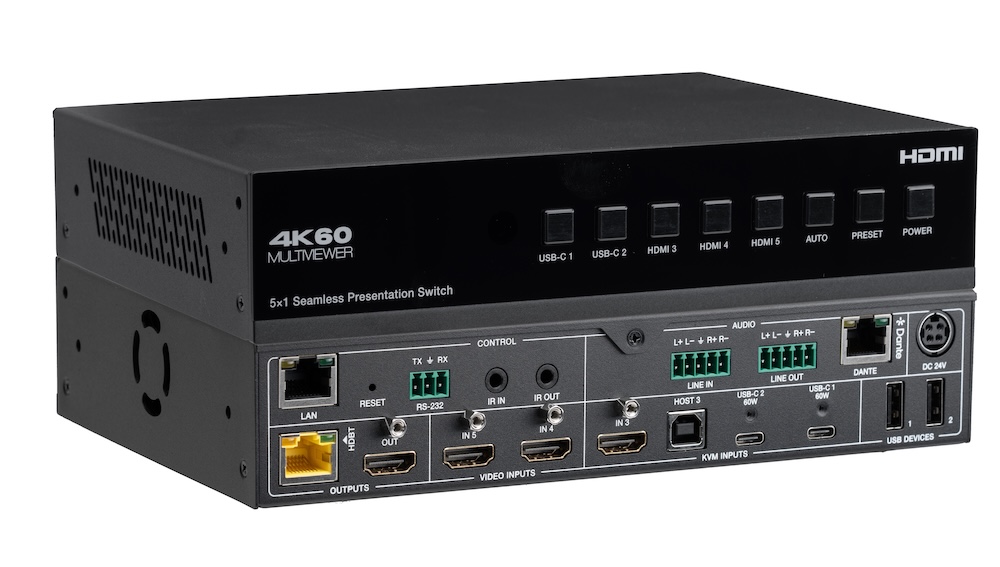
In a small meeting room, a presentation switcher with a built-in audio matrix and display control can replace the separate DSP and control processor.
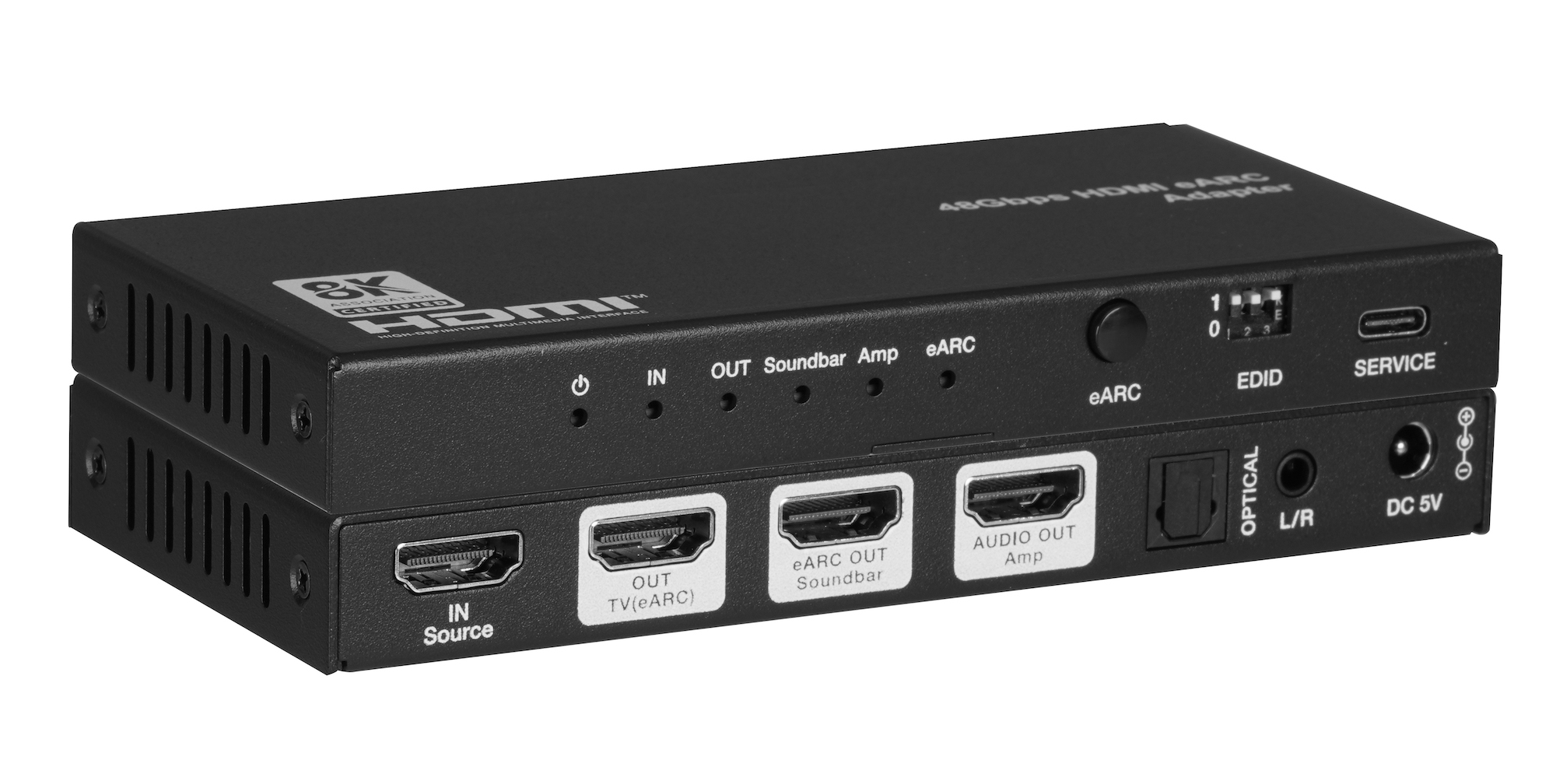
When one TV eARC port has to feed a soundbar and an amplifier, spec one adapter with both HDMI audio outputs instead of chaining two extractors.
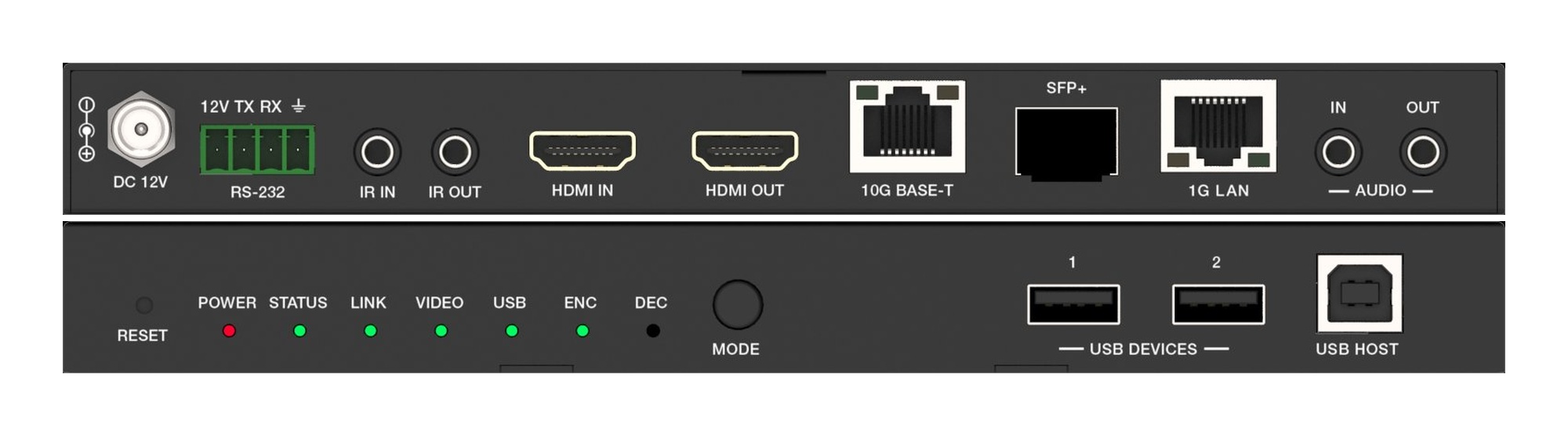
A fixed HDMI matrix switcher locks a job to its port count. Uncompressed 10G AV over IP routes the same way with zero-frame latency and room to grow.
KanexPro sells direct to dealers, resellers, installers and integrators, and through distribution. Whichever way you buy, the same engineers answer the phone.
The trade store: your own account, live stock, reordering, and a first look at new products.
Go to the trade store →Distribution and authorised resellers across the US and beyond.
See where to buy →Design help on extenders, matrix and AV over IP before you spec it.
Ask an engineer →