HDMI Converters & Splitters Guide: From Legacy Equipment to Modern Displays
Bridging analog video to HDMI displays? Expanding one source to multiple screens? Kanex Pro's guide covers component, composite, and DVI converters…


You want to connect one HDMI thing to a lot of TVs. This is something people need to do at home and in businesses. If you have a sports bar or a store with TVs showing information or if you just want to show the thing on TVs in different rooms you can use an HDMI splitter.
It is a way to do this. This guide will tell you all about HDMI splitters. You will learn how they work and what you need to get started. It will also show you how to set everything up one step at a time so you can do it right.
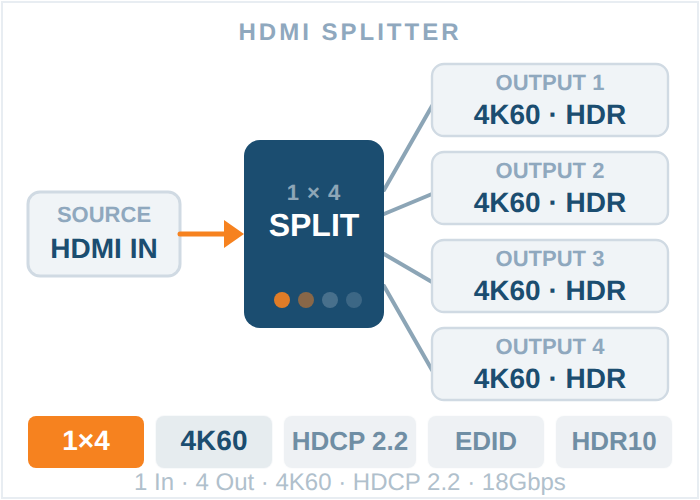
An HDMI splitter is a thing that takes one signal from an HDMI and makes copies of it to send to places. This means you can show the video and audio on lots of screens at the same time.
For example:
• A 1x2 splitter sends one signal to two TVs
• A 1x4 splitter sends one signal to four TVs
All the TVs that are connected will show the thing. The HDMI splitter makes sure that all the screens have the video and audio from the HDMI.
Before starting, gather the following components:
Essential Items
• HDMI source device (such as a set-top box, laptop, gaming console, or media player)
• HDMI splitter (based on the number of displays you need)
• HDMI cables (one for input and one for each TV)
• TVs or monitors
• Power adapter for the splitter
Optional for Extended Distance
• HDMI extender (Cat6 or fiber-based)
• Active HDMI cables for longer cable runs
When you use an HDMI splitter it makes a copy of the signal from the source device, like a Blu-ray player or a computer and sends it to multiple TVs at the same time. The thing is, there are some things you need to think about.
The resolution on your TVs will usually be limited to the resolution that all the connected TVs can handle.
For example if one TV can only handle 720p and the other can handle 1080p the HDMI splitter will only send a 720p signal to both TVs.
Audio format may go down to a format that all the TVs can play. The strength of the signal also depends on the quality of the cables you use and how good the HDMI splitter is.
To connect one HDMI source to TVs do this:
First you need to turn off everything. I mean turn off the source device, all the TVs and the HDMI splitter. This is an idea because it helps prevent problems with the signal.
Now let’s move on to the step. You need to connect your HDMI source to the splitter. Take an HDMI cable. Use it to connect your source device to the input port on the HDMI splitter.
Next you need to connect the splitter to each TV. Take one HDMI cable for each output port on the splitter. Connect it to each TV.
After that you need to give power to the splitter. Plug the splitter into a power source using its adapter. Most of the time splitters need to be plugged in to work properly.
Then turn on the devices one by one. First turn on the TVs. Next turn on the HDMI splitter. Finally turn on the source device.
Last step: use your TV remote to select the input on each TV. You need to switch to the HDMI input port. Now the same thing should be showing on all the TVs that are connected to the HDMI source.

If your TVs are really away from the thing that sends the signal like more than 15 to 20 meters the signal might not be very good. So if that happens you should think about these things:
This setup converts the HDMI signal to travel through Ethernet cables and can support distances up to 100 meters.
Fiber-based solutions are ideal for very long distances and provide high bandwidth with minimal signal loss.
• Ensure all cables are securely connected
• Check that the splitter is powered
• Test with different HDMI cables
• Use high-quality HDMI cables
• Avoid excessively long cable runs without amplification
• Use a powered splitter
• Make sure all TVs support the same resolution
• Adjust the output resolution on the source device
• Use an HDCP-compliant splitter
• Restart all devices to reset the connection
A powered splitter ensures stable signal distribution and prevents signal loss.
Using TVs with similar resolution and refresh rates improves performance and compatibility.
Low-quality cables can result in signal degradation, especially over longer distances.
Using similar cable lengths for each display can help maintain signal balance.
HDMI splitters are widely used in various environments:
• Retail stores for digital signage
• Restaurants and sports bars
• Corporate offices and meeting rooms
• Educational institutions
• Home entertainment systems
For more complex requirements, consider upgrading your system:
Allows multiple sources and multiple displays with flexible routing options.
Separates audio from HDMI signals for external sound systems.
No, HDMI splitters only mirror the same content. For different content, you need a matrix switcher.
This depends on the splitter model. Common configurations include 1x2, 1x4, and 1x8.
There is minimal to no signal loss when using a powered splitter with high-quality cables.
Yes, provided the splitter and all connected TVs support 4K resolution.
Wireless HDMI solutions exist, but wired connections are generally more stable and reliable.
Using an HDMI splitter to connect one source to TVs is a simple way to show the same thing on all the screens. If you have the stuff and you set it up correctly it will work well for both home and work use.
By doing what this guide says and following the tips you can stay away from problems that people often have and get a picture on all the TVs. You will have a high-quality picture on all the displays when you use an HDMI splitter to connect one HDMI source to multiple TVs.
Press Inquiries please click here
Bridging analog video to HDMI displays? Expanding one source to multiple screens? Kanex Pro's guide covers component, composite, and DVI converters…
If your source device outputs through a red, green and blue RCA trio, you need a component to HDMI converter. A single yellow RCA means a composite…
An HDMI distribution system moves video from sources to displays. Which topology you need comes down to three numbers: how many sources, how many…
KanexPro sells direct to dealers, resellers, installers and integrators, and through distribution. Whichever way you buy, the same engineers answer the phone.
The trade store: your own account, live stock, reordering, and a first look at new products.
Go to the trade store →Distribution and authorised resellers across the US and beyond.
See where to buy →Design help on extenders, matrix and AV over IP before you spec it.
Ask an engineer →