HDMI Distribution System Design: Splitters, Matrices, Scalers and Dante
Specifying an HDMI Distribution System: Splitters, Matrices, Scaling Switchers and Dante Audio Short answer: Choose the device by the shape of the…



If your source device outputs through a red, green and blue RCA trio, you need a component to HDMI converter. A single yellow RCA means a composite to HDMI converter. A white 24-pin plug from a PC or older monitor calls for a DVI to HDMI converter. And if one source has to feed several screens at the same time, a 1x4 HDMI splitter covers up to four displays while a 1x8 HDMI splitter covers up to eight.
That is the short version. The rest of this guide covers the details that decide whether your install works on the first try or turns into an afternoon of swapping cables.
What you are looking at | Product category you need | Signal type |
Three RCA jacks coloured green, blue and red | Component to HDMI converter | Analog YPbPr |
One yellow RCA jack, often beside red and white audio | Composite to HDMI converter | Analog CVBS |
White plastic connector with 24 or 29 pins | DVI to HDMI converter | Digital TMDS |
One HDMI source, two to four displays | 1x4 HDMI splitter | Digital HDMI |
One HDMI source, five to eight displays | 1x8 HDMI splitter | Digital HDMI |
One source, one display, over 25 feet apart | HDMI extender | Digital over Cat6 or fibre |
Component and composite are analog formats. HDMI is digital. A converter is not a passive adapter in these cases. It contains an analog to digital converter chip, a scaler and an audio embedder that packages the sound into the HDMI stream. This is why a five dollar cable will never do the job, and why conversion quality varies so much between units.
DVI is the exception. DVI-D and HDMI both carry TMDS digital signalling defined by the same underlying spec work, so the video portion passes through with no processing. What DVI does not carry is audio, which is where a proper converter with audio embedding earns its place.
Component to HDMI: The 1080i Workhorse
Component video, also written as YPbPr, splits the picture into one luminance channel and two colour difference channels. That separation is why it holds up far better than composite and why it was the standard high definition analog connection on DVD players, early Blu-ray decks, Xbox 360, PlayStation 2 and 3, cable boxes and camcorders.
Key points before you buy:
• Component supports up to 1080i and, on some sources, 1080p. It is genuine high definition, so a good converter should pass detail cleanly rather than soften it.
• Audio travels separately over the red and white RCA pair. Confirm your converter has those inputs and embeds them into HDMI.
• Copy protection matters. Under the AACS analog sunset provisions, players manufactured after 31 December 2013 dropped analog outputs entirely, and models built after 2010 were already limited to 540p for protected discs. If your source is newer than that, check whether component output even exists.
• Look for a unit that outputs both 720p and 1080p so you can match the display's native panel resolution.
KanexPro builds a range of analog to digital signal converters for exactly these legacy source scenarios, including models with switchable output resolution.
Composite, or CVBS, squeezes brightness and colour into a single yellow cable. It is 480i in NTSC regions and 576i in PAL regions, with roughly 330 lines of horizontal resolution. VHS decks, retro consoles, older CCTV cameras, DVD players in secondary rooms and analog camcorders all use it.
Set expectations correctly here. A composite to HDMI converter upscales the signal so a modern television will accept and display it, but upscaling cannot invent detail that was never captured. What a good converter does deliver is a stable, correctly deinterlaced, correctly proportioned picture instead of a rolling or letterboxed mess.
Three things separate a good composite converter from a poor one:
1. Deinterlacing quality. Motion adaptive deinterlacing removes the comb artefacts you see on fast movement.
2. Aspect ratio handling. The source is 4:3. The converter should letterbox it properly rather than stretch faces sideways.
3. Format auto-detection. NTSC and PAL switching should be automatic, which matters for mixed-region archive footage.
DVI arrived from the Digital Display Working Group and is still everywhere in commercial environments: signage players, older workstations, industrial PCs, medical imaging displays, KVM equipment and rack-mounted controllers.
DVI variant | Pins | Maximum resolution | Carries analog? |
DVI-D single link | 18+1 | 1920 x 1200 at 60Hz | No |
DVI-D dual link | 24+1 | 2560 x 1600 at 60Hz | No |
DVI-I single link | 18+5 | 1920 x 1200 at 60Hz | Yes |
DVI-I dual link | 24+5 | 2560 x 1600 at 60Hz | Yes |
A splitter takes one HDMI input and duplicates it, identically, to multiple outputs. It shows the same picture everywhere. It does not create an extended desktop and it does not let each screen show something different. For different content on each screen you want a matrix switcher or a video wall processor instead.
1x4 HDMI Splitter vs 1x8 HDMI Splitter
Consideration | 1x4 HDMI splitter | 1x8 HDMI splitter |
Displays supported | Up to 4 | Up to 8 |
Typical use | Boardroom, classroom, bar with a few screens, small clinic waiting area | Retail chain wall, sportsbook, trade show booth, large training room, house of worship |
Rack format | Often compact desktop or half rack | Usually 1U full rack with internal PSU |
Power draw | Lower, external adapter common | Higher, internal supply preferred for reliability |
Cascading | Can feed further splitters | Reduces the need to cascade at all |
Cost per output | Higher | Lower at full utilisation |
The buying rule that saves the most money over time: count your current screens, add the screens you will realistically add in the next 24 months, then buy for that number. Cascading a second splitter later adds another failure point, another power supply and another layer of EDID negotiation. Going from four outputs to eight in a single chassis is almost always cheaper than running two boxes.
Browse the full range of 1x4 and 1x8 HDMI splitters to compare port counts and supported resolutions.
Bandwidth. HDMI 1.4 handles 10.2 Gbps, which caps you at 4K30. HDMI 2.0 handles 18 Gbps for 4K60 in 4:4:4 colour. HDMI 2.1 handles 48 Gbps for 8K60 and 4K120. Match the splitter to the most demanding source you will ever connect, not the one plugged in today.
HDCP compliance. Protected content from streaming boxes, Blu-ray players and set-top boxes requires the splitter to be HDCP compliant, and 4K sources generally require HDCP 2.2 or 2.3. A non-compliant splitter produces a black screen or a copy protection error rather than a degraded picture.
EDID management. This is the specification most people skip and then spend two hours troubleshooting. Every display reports its capabilities back to the source. When one source faces eight displays, something has to decide which capability is set to report. Splitters with EDID copy or a manual EDID mode let you lock the output to a known format. Without it, a single 1080p screen in a group of 4K screens will drag the whole system down to 1080p, or worse, cause intermittent handshake dropouts.
Original insight worth acting on: in mixed-display installations, the most common support call is not a dead splitter. It is EDID negotiation defaulting to the lowest capable screen. Set EDID manually during commissioning and document the setting.
1. Power down everything. Source, splitter and all displays.
2. Connect the source first, then each output in order, then power last. HDMI handshakes are sequence sensitive.
3. Power up in reverse. Displays first, then the splitter, then the source. This lets EDID information flow upstream before the source starts negotiating.
4. Verify on output one, then check each remaining output individually.
5. Set EDID mode. If the displays are identical, copy from output one. If they are mixed, lock to the lowest common resolution manually.
6. Test HDCP content using an actual protected source, not a laptop desktop. Many faults only appear with protected streams.
7. Label every cable at both ends. Future you will be grateful.
Passive HDMI cable gets unreliable past roughly 15 feet at 4K60 and past roughly 50 feet even at 1080p, because TMDS signalling degrades with cable length and conductor quality. If any run in your project exceeds those distances, a splitter alone will not solve it.
The usual approaches, in order of typical cost:
• Active optical HDMI cable for a single long run with no intermediate equipment.
• HDBaseT or Cat6 extenders for runs up to 100 metres over structured cabling, which is the standard choice in commercial buildings.
• Splitter plus extender combination where one source feeds several distant displays, common in stadium and campus installs.
For runs beyond the reach of standard cable, HDMI extenders over Cat6 and fibre preserve full resolution without adding a scaler into the signal path.
Symptom | Most likely cause | Fix |
Black screen, source and display both powered | HDCP handshake failure | Confirm HDCP version support on every device in the chain |
Picture on some outputs, not others | EDID conflict from mixed displays | Set EDID manually to lowest common format |
Snowy or rolling analog picture | NTSC and PAL mismatch | Enable auto-detect or set format manually on the converter |
No audio through HDMI from a DVI source | DVI carries no audio | Use a converter with an audio input and embedder |
Intermittent dropouts after 20 minutes | Underpowered splitter or marginal cable | Use the supplied PSU, shorten runs or fit an active cable |
Stretched faces from a VHS source | Aspect ratio forced to 16:9 | Set the converter or display to preserve 4:3 |
Q1. Can a component to HDMI converter improve picture quality?
It can improve stability, scaling and deinterlacing, but it cannot add detail that the analog source never captured. Expect a clean, correctly formatted image at your display's native resolution rather than a higher fidelity one.
Q2. Is a DVI to HDMI converter the same as a DVI to HDMI cable?
No. A passive cable moves the digital video across because DVI-D and HDMI share TMDS signalling. A converter adds audio embedding, and in some models EDID handling and signal reclocking, which a passive cable cannot do.
Q3. Will a 1x4 HDMI splitter let each screen show different content?
No. A splitter mirrors identical content to every output. Different content on each screen requires a matrix switcher or a video wall controller.
Q4. Do HDMI splitters reduce picture quality?
A properly specified splitter regenerates the digital signal, so there is no degradation. Quality problems come from insufficient bandwidth for the resolution, HDCP mismatches or cable runs beyond spec, not from the act of splitting itself.
Q5. Can I connect a 1x8 HDMI splitter to a 4K source and 1080p displays?
Yes, provided the splitter supports downscaling on the outputs or you set EDID to report 1080p. Without one of those, the source may output 4K to displays that cannot render it.
Q6. Does a composite to HDMI converter work with security cameras?
Yes. Analog CCTV cameras and older DVRs commonly output composite, and a converter lets you feed a modern monitor or display wall directly.
Q7. Do I need a powered splitter?
For anything beyond two outputs, yes. Each additional output draws current for signal regeneration, and unpowered or underpowered units are the leading cause of intermittent dropouts.
Q8. Can I cascade splitters to reach more than eight displays?
It is possible, but each stage adds latency risk and another EDID negotiation point. Beyond eight outputs, a distribution amplifier or matrix is the more reliable design.
Match the connector, then the resolution, then the distance, then the copy protection. Those four checks resolve the overwhelming majority of AV signal problems before a single box is purchased.
If your project involves mixed legacy sources, multiple displays or long cable runs, talk to the KanexPro team about your setup and get a specification recommendation before you order.
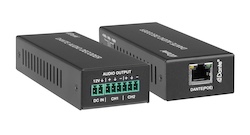
Specifying an HDMI Distribution System: Splitters, Matrices, Scaling Switchers and Dante Audio Short answer: Choose the device by the shape of the…
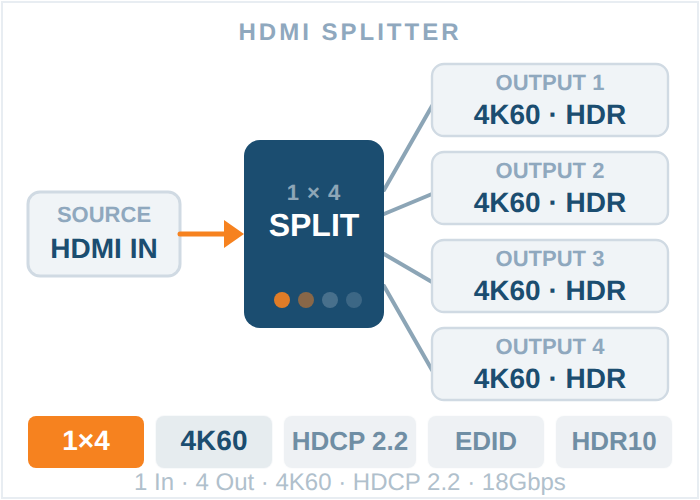
Bridging analog video to HDMI displays? Expanding one source to multiple screens? Kanex Pro's guide covers component, composite, and DVI converters…
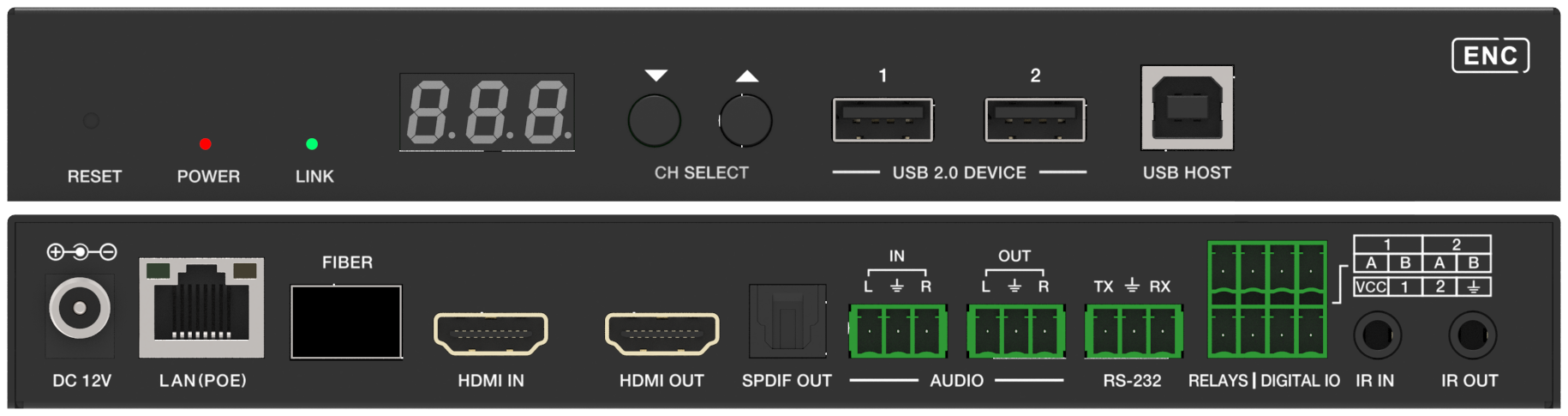
The pitch has become reflexive: move video onto the network, and the first line item is a parallel 10G switching fabric to carry it. That advice made…
KanexPro sells direct to dealers, resellers, installers and integrators, and through distribution. Whichever way you buy, the same engineers answer the phone.
The trade store: your own account, live stock, reordering, and a first look at new products.
Go to the trade store →Distribution and authorised resellers across the US and beyond.
See where to buy →Design help on extenders, matrix and AV over IP before you spec it.
Ask an engineer →