HDMI to SDI, Matrix Switchers & AV Extenders Guide
HDMI to SDI Converters, Matrix Switchers, and AV Extenders: A Buying Guide An HDMI to SDI converter turns a consumer HDMI signal into…


Modern HDMI displays are universal standards, but institutional, broadcast, and legacy equipment still uses older video formats. Converting these signals properly maintains quality while extending equipment lifespan.
Common Scenarios:
Integrating VCRs, DVD players, or vintage gaming systems into modern meeting rooms
Displaying archive video footage on contemporary displays
Connecting professional broadcast equipment to HDMI monitoring systems
Building hybrid AV systems with mixed-generation devices
Upgrading surveillance or security systems to modern displays
Without proper conversion, you face equipment replacement costs in the tens of thousands. Professional converters solve this for hundreds of dollars while maintaining full signal integrity.
Each legacy video standard carries signals differently. Understanding these differences ensures you select the right converter for your installation.
Format | Connector Type | Max Resolution | Color Depth | Use Case | Signal Path |
Composite | RCA (yellow/red/white) | 480i/576i (240p effective) | 16-bit | VCRs, old camcorders | Single cable transmission |
Component | RCA x3 (Y/Pb/Pr) | 1080i native (1080p via scaling) | 24-bit | DVD, Pro equipment | Separated color channels |
DVI | D-Sub 24/29 pin | 1920x1200 @ 60Hz | 24-bit | Workstations, Pro video | Pure digital transmission |
HDMI 2.0 | Single connector | 4K @ 60Hz | 24-bit to 48-bit | Modern displays, Pro AV | Digital + embedded audio |
Component video (Y/Pb/Pr) was the professional HD standard pre-HDMI. Converting component sources maintains maximum quality from your legacy equipment.
Component Signal Architecture:
Y channel carries luminance (brightness information)
Pb channel carries blue color difference
Pr channel carries red color difference
Separated signals minimize quality loss compared to composite
Ideal Applications:
Professional video playback systems (broadcast studios, archive centers)
Legacy gaming consoles (PlayStation 2, Xbox, GameCube with component cables)
Older high-end DVD and media players
Medical imaging and specialized monitoring equipment
Vintage projectors and professional displays
Archive video asset conversion and digitization
Conversion Performance Expectations:
Maximum output resolution: 1080i native (1080p via converter scaling)
Refresh rate: 60Hz stable across all frequencies
Color accuracy: Within 2% tolerance (professional-grade converters)
Signal latency: <1ms (imperceptible to human perception)
Audio embedding: Automatic into HDMI output (separate audio inputs)
Installation Protocol:
Connect component cables to corresponding inputs (Y to Y, Pb to Pb, Pr to Pr)
Connect USB power supply if converter requires external power
Link HDMI output to your modern display
Configure display resolution settings (typically auto-negotiates)
Test color balance and brightness (should match source device)
Quality Factors: Budget converters often introduce color shifting, brightness loss, or intermittent signal drops. Professional-grade conversion technology (Kanex Pro standard) includes:
Precision clock generation for stable signal timing
EMI shielding and filtering to prevent interference
Advanced ADC/DAC processing for color accuracy
Extended temperature and stress testing protocols
Composite video represents the oldest consumer standard. Though inherently limited, composite converters enable connection of truly legacy systems to modern displays.
When Composite Conversion Is Essential:
VHS/VCR playback systems
Older camcorders (pre-2005 models)
Retro gaming consoles (Nintendo 64, Sega Genesis, original PlayStation)
Older CCTV and security systems
Analog TV signal sources
Institutional video archives and libraries
Legacy surveillance recording systems
Composite Video Characteristics:
Single cable carries all video information
Maximum resolution: 480i (NTSC) or 576i (PAL standard)
High susceptibility to electromagnetic interference
Visible color artifacting during fast motion scenes
Bandwidth limitation: ~5 MHz
Converter Technology Advantages:
Deinterlacing algorithms (converts 480i interlaced to 480p progressive)
Upscaling engines (enhances to 1080p output for larger displays)
3D comb filtering (improves color separation and clarity)
Automatic NTSC/PAL detection (handles both standards seamlessly)
Noise reduction filtering (reduces analog signal artifacts)
Realistic Quality Expectations: Composite is inherently limited, but quality converters mitigate visual artifacts. Expected output quality tops out at 480p resolution maximum. Upscaling improves display sharpness but cannot add detail beyond the original signal.
Troubleshooting Tips for Best Results:
Use properly shielded cables (reduces electromagnetic interference)
Employ quality power supplies rated for the converter (prevents digital noise)
Keep cable runs under 10 meters when possible
Adjust source device brightness/contrast for optimal output
Test with various content types (motion vs. static scenes)
Verify power connector is fully seated (loose connections cause signal loss)
DVI (Digital Visual Interface) was the professional video standard before HDMI adoption. DVI converters maintain full digital signal integrity with zero quality loss.
DVI Connector Specifications:
DVI-D: Digital only (24-pin configuration)
DVI-A: Analog only (15-pin configuration)
DVI-I: Integrated digital + analog (29-pin configuration)
DVI Advantages Over Analog Formats:
Pure digital transmission (no degradation across any cable length)
Lossless signal transfer (signal at output = signal at input)
Professional-grade signal quality standards
Supports up to 1920x1200 resolution at 60Hz
Zero electromagnetic interference immunity issues
Wide equipment compatibility in professional environments
Typical Professional Applications:
High-end computer workstations (CAD, design, medical imaging)
Financial trading terminals and command centers
Professional video editing and color grading suites
Broadcast monitoring and control systems
Medical imaging workstations (CT, ultrasound, radiology)
Security and surveillance control centers
Technical Specifications:
Maximum resolution: 1920x1200 @ 60Hz (single-link DVI)
Dual-link DVI: Supports up to 2560x1600 @ 60Hz
Signal latency: <1ms (professional real-time requirements)
Color depth: 24-bit minimum (8-bit per channel)
HDCP compliance: Full support for copy-protected content
Professional Installation Steps:
Verify DVI cable type compatibility (check connector pins: 24, 15, or 29)
Connect DVI source securely (DVI uses screw fittings for reliability)
Connect HDMI output to professional display
Connect external power adapter if required
Configure display resolution in operating system
Verify color depth settings (24-bit color minimum for professional work)
Test with professional content (precise colors, text clarity)
Why Professional-Grade DVI Converters Command Premium Pricing:
Advanced digital signal processing circuitry
Precision crystal oscillators for stable clock generation
Comprehensive EMI shielding and filtering
HDCP 2.2 decryption and re-encryption engines
Extensive certification testing (FCC, CE, RoHS)
Professional-grade mean time between failures (MTBF: 50,000+ hours)
Dedicated technical support for enterprise deployments
HDMI splitters distribute one video source to multiple displays simultaneously while maintaining full signal quality and independent resolution negotiation per output.
Detailed Specifications:
Input ports: 1x HDMI 2.0 connector
Output ports: 4x HDMI ports (independent operation)
Maximum resolution: 4K UHD @ 30Hz (full bandwidth distribution)
1080p resolution: 60Hz stable across all 4 outputs
HDCP compliance: Full 2.2 standard (anti-piracy protected content)
Power requirement: USB external power or AC adapter (typically 20-30W)
EDID management: Independent per output (each display negotiates own resolution)
Ideal Deployment Scenarios:
Retail digital signage networks (4 storefront displays synchronized)
Educational classrooms (instructor presentation across 4 monitors)
Corporate conference rooms (same content on multiple wall displays)
Security and surveillance monitoring stations (4 camera feeds on single input)
Residential multi-room entertainment (living room, dining, bedroom, outdoor)
Hotels and restaurants (synchronized menu boards, promotional displays)
Signal Quality & Performance:
Zero signal degradation across all 4 outputs (active regeneration per port)
Independent EDID negotiation (each display can run different resolution)
Hot-swap capability (add/remove displays without restarting)
Cascade-compatible (chain multiple splitters for 8+ display networks)
Typical latency: <2ms (imperceptible for video applications)
Installation Procedure:
Connect HDMI source device to splitter input port
Connect up to 4 display devices to output ports (order independent)
Connect external power adapter to splitter
Displays automatically negotiate resolution
Verify all 4 outputs display content correctly
Individually adjust display brightness/contrast if needed
Important Limitation: All 4 outputs display identical content. For different content per display, use HDMI matrix switchers or AV over IP solutions instead.
Quality Assurance Testing:
Each output tested for signal integrity under full 4K load
HDCP authentication verified across all outputs
Thermal stress testing (extended operation at maximum bandwidth)
Power supply redundancy testing (graceful degradation if power fails)
Advanced Technical Specifications:
Input: 1x HDMI 2.0 port (full bandwidth input)
Outputs: 8x independent HDMI ports
Maximum resolution: 4K UHD @ 24Hz (across all 8 simultaneous outputs)
1080p performance: 60Hz stable across all 8 ports
Power requirement: AC power supply (60-100W typical)
HDCP: Complete 2.2 compliance
Cable distance: Supports daisy-chain up to 50 meters with quality cables
Enterprise & Commercial Deployment Applications:
Large retail networks (8+ store locations, synchronized signage)
Corporate training centers (8 simultaneous classroom displays)
Theme parks and attractions (multi-screen video wall installations)
Government emergency response centers (8-display situation rooms)
Broadcasting and production facilities (multi-monitor monitoring)
Professional sports venues (scoreboard and display networks)
Live event production (stage displays, audience screens)
Why 1x8 Splitters Require AC Power:
Each output independently regenerates full HDMI signal (buffer amplification)
Thermal management circuitry prevents overheating
Advanced power distribution ensures stable supply to all 8 ports
Backup power features for critical installations
Redundant power supply options for mission-critical deployments
Professional Installation Considerations:
Pre-plan display locations and cable routing
Use professional-grade HDMI 2.0 certified cables for all runs
Verify AC power supply capacity (measure total draw with all 8 outputs active)
Install in climate-controlled server room or equipment closet (airflow critical)
Implement regular testing protocol (monthly output verification)
Document all cable assignments for future troubleshooting
Consider redundant splitter for critical installations
Cascading Multiple Splitters for Expanded Coverage: Connect splitter output to another splitter input to achieve 16-32 display networks. Important caveat: Each cascade stage reduces refresh rate capability (30Hz @ 4K with 2 cascaded 1x8 units). For 16+ displays, consider Kanex Pro matrix switcher or AV over IP solutions.
Choosing the correct technology depends on your specific requirements:
Requirement | Technology | Kanex Pro Product | Typical Application |
Connect old device to new TV | Converter | Component/DVI to HDMI | Home theater, residential |
Display same content on multiple screens | Splitter | 1x4 or 1x8 HDMI splitter | Retail signage, conferences |
Display different content per screen | Matrix Switcher | Trading floors, control rooms | |
Extend HDMI beyond 15 meters | Extender | Long cable runs (50-100m) | |
Mix legacy + modern displays | Converter + Splitter | Combo solution | Mixed-generation facilities |
Scale content for different displays | Scaler | Multi-resolution environments | |
Professional broadcast integration | SDI Solution | Broadcast, production, studios |
Professional-grade converters and splitters undergo rigorous compliance verification:
HDMI Certification Testing Protocol:
HDCP 2.2 encryption/decryption verification
Color space accuracy measurement (Delta E 2000 specifications = 2.0 or less)
Jitter and timing precision analysis
Electromagnetic compatibility (FCC, CE certification)
Temperature environmental stress testing (-10 to +50 degrees Celsius)
Humidity and salt-spray corrosion testing (for coastal installations)
Extended burn-in testing (72+ hours continuous operation)
Real-World Performance Impact of Quality Differences:
Consumer-grade converters: 3-5% signal quality loss, intermittent disconnections
Professional converters: <0.5% signal quality loss, 99.99% uptime guarantee
Budget splitters: Frequent drop-outs, color artifacts, thermal failures
Enterprise splitters: Verified performance across all ports, redundancy features
Learn from thousands of installations. These errors cost time and money:
Connector & Cable Errors:
Mixing cable types (composite cables into component inputs)
Using composite cables for component connections (signal incompatibility)
Connecting DVI-A (analog) to DVI-D (digital) ports (no signal transmission)
Using low-quality HDMI cables (signal degradation over distance)
Exceeding maximum cable length specifications (15m for HDMI passive)
Power & Supply Issues: 6. Undersized USB power adapters (insufficient current for conversion processing) 7. Daisy-chaining powered devices to single outlet (voltage sag) 8. Using incorrect barrel connector polarity (no power to converter) 9. Placing power supply in same rack as RF equipment (electromagnetic interference) 10. Running power cables parallel to HDMI cables (signal cross-talk)
Configuration & Setup Errors: 11. Assuming automatic resolution detection (some devices require manual config) 12. Not adjusting source device color/brightness before conversion 13. Cascading too many splitters (refresh rate degrades with each stage) 14. Exceeding maximum display count for splitter type 15. Neglecting to test each splitter output individually
Environmental & Installation: 16. Covering converter exhaust vents (thermal throttling, shutdown) 17. Installing in non-climate-controlled spaces (thermal stress on components) 18. Using thin, unshielded cables in electrically noisy environments 19. Running cables through metal conduit without shielding 20. Connecting to low-quality power strips with no surge protection
Q: Can I use a component to HDMI converter with my older Blu-ray player?
Likely yes. Older DVD players (pre-2006) typically use component outputs. Most Blu-ray players include HDMI natively. Check your device's rear panel for Y/Pb/Pr connectors. Professional installers verify output type before recommending conversion.
Q: Should I use one 1x8 splitter or cascade two 1x4 splitters?
Use single 1x8 for 8 displays requiring 1080p @ 60Hz. Cascaded 1x4 units reduce refresh rate potential (30Hz @ 1080p with 2 cascades). For professional installations, single 1x8 provides better signal consistency and easier troubleshooting.
Q: Does composite to HDMI conversion reduce video quality?
Yes, unavoidably. Composite video maximum is 480i (NTSC) or 576i (PAL). Converters upscale to 1080p for modern displays, but no detail is added beyond original signal. Quality is limited by source, not converter.
Q: What's the maximum HDMI cable length for converter installations?
Standard HDMI cables work reliably to 15 meters. Beyond this, use HDMI extenders over Ethernet (100+ meters) or fiber optic. Professional installers prefer <10 meter runs for critical applications.
Q: Can I cascade multiple HDMI splitters for 16+ displays?
Yes, but with performance penalty. Each cascade reduces refresh rate: 1x8 alone = 60Hz @ 1080p. Two cascaded 1x8 = 30Hz @ 1080p. For 16+ displays, consider Kanex Pro HDMI matrix switcher or AV over IP solutions instead.
Q: Can composite converters embed audio into HDMI?
Yes. Standard composite carries video only (RCA yellow). Audio requires separate RCA connections (red/white). Quality converters automatically embed audio into HDMI output.
Q: Is DVI-D technically the same as HDMI?
No. DVI-D is digital video only (no audio). HDMI combines digital video, audio, and Ethernet. Converters bridge these standards but must handle the architectural differences.
Q: What's HDCP and why do converters need to support it?
HDCP (High-bandwidth Digital Content Protection) is copy protection for streaming, Blu-ray, and cable. Converters must support HDCP 2.2 to display protected content. Non-compliant converters display black screens on protected content.
Q: Can I upscale video resolution beyond the original source?
Converters can upscale display output size (480i to 1080p on-screen), but cannot add detail beyond original signal. Source resolution remains the limiting factor. For true higher resolution, source must provide it.
Q: How do I verify converter compatibility with my specific equipment?
Match source device video outputs (check back panel) with converter input connectors. Match converter HDMI output to display HDMI input. Consult converter documentation for resolution and format support.
Browse professional HDMI splitter options:
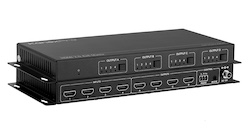
HDMI to SDI Converters, Matrix Switchers, and AV Extenders: A Buying Guide An HDMI to SDI converter turns a consumer HDMI signal into…
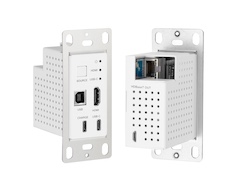
SDI Extenders, Signal Converters and Audio Matrix Switching: An AV Integrator's Buying Guide Which of these five you need depends entirely on the…
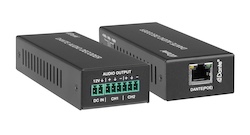
Specifying an HDMI Distribution System: Splitters, Matrices, Scaling Switchers and Dante Audio Short answer: Choose the device by the shape of the…
KanexPro sells direct to dealers, resellers, installers and integrators, and through distribution. Whichever way you buy, the same engineers answer the phone.
The trade store: your own account, live stock, reordering, and a first look at new products.
Go to the trade store →Distribution and authorised resellers across the US and beyond.
See where to buy →Design help on extenders, matrix and AV over IP before you spec it.
Ask an engineer →