Try the MMX-8X8AUD in your browser: what the demo shows
The MMX-8X8AUD product page has a Demo button: a simulated 8x8 matrix in your browser. Route by dragging, see which sources have a picture, use each…


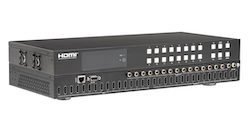 MMX-16X16AUD
18Gbps 16×16 HDMI Matrix with ARC Function
4K60 4:4:4 Matrix Switcher with Coaxial Audio De-embedding & ARC
Product page →
MMX-16X16AUD
18Gbps 16×16 HDMI Matrix with ARC Function
4K60 4:4:4 Matrix Switcher with Coaxial Audio De-embedding & ARC
Product page →
The MMX-16X16AUD product page has a Demo button, next to Buy Direct. It opens a simulated MMX-16X16AUD in your browser: the same matrix page and remotes that RelayAV, KanexPro's control app, shows for a real one. There is nothing to install and no sign-in. Nothing you do there reaches a real matrix, and Reset puts it back to the start.
Applies to: MMX-16X16AUD · Open the demo

The demo is set up as a sports bar and venue. Its inputs have names like Cable box 1 to 4, Satellite, Apple TV and Fire TV, and its outputs are screens like Main bar TV, Bar TV 1 to 4, Dining and Patio TVs. Every name can be changed with the pencil beside it, as on a real system.
In the Lines view, inputs sit on the left and outputs on the right, with a line for each route. Drag an input onto an output to show it on that screen, or onto the Outputs heading to show it on every screen at once. Tap an input to see every screen it is on. The Tiles view shows the same routes as cards.
A green dot on an input means that source has a picture; a green dot on an output means a screen is connected. With With a picture on, which it is by default, the list shows only the sources that have one, so nobody routes a blank input to a screen. All inputs shows the rest.
Yes. Each input has a remote button that opens that source's remote: menus, playback and power for a cable box or streaming player, over HDMI CEC. Each output has its own remote for its screen, and an On / Off button.
A preset stores every route at once. The demo's presets are Open, Game day, Music night, Private party and Closing. Tap one to bring that whole setup back. The one you recalled stays lit, shows changed if you move a route afterwards, and Save writes your changes back into it.
Each of the sixteen HDMI outputs has its own coaxial audio out (AUDIO OUT 1 to 16), carrying the sound of whatever that screen is showing: LPCM 2.0, Dolby Digital/Plus or DTS 5.1. So a zone amplifier fed from AUDIO OUT 3 always plays what Output 3 shows. With ARC turned on for an output, its coax carries the TV's own return audio instead. The matrix has no volume of its own: set the level on the amplifier or soundbar, or step a screen's own volume over CEC.
Yes. Amy, the built-in Product Expert, answers questions about this matrix: its wiring, its audio outputs, cable reach and how it fits a venue or meeting space. If you ask her to change something, she offers a Do it button, and nothing changes until you press it.
The controls come from the same command set RelayAV uses to run a real MMX-16X16AUD, so routing, presets and the remotes work the way they do on the box. The pictures and the connected devices are simulated. Installer settings such as EDID and network setup are left out of the demo; on a real matrix they are set once, on its own setup page.
RelayAV runs a real MMX-16X16AUD through an AV-over-IP encoder running RelayAV, or a Mac running the RelayAV app, on the same network. One of the two is needed: the matrix does not run RelayAV itself.
Use the Feedback button at the top of the demo. It goes straight to the KanexPro team, and you can leave an email address or phone number if you would like a reply.

The MMX-8X8AUD product page has a Demo button: a simulated 8x8 matrix in your browser. Route by dragging, see which sources have a picture, use each…
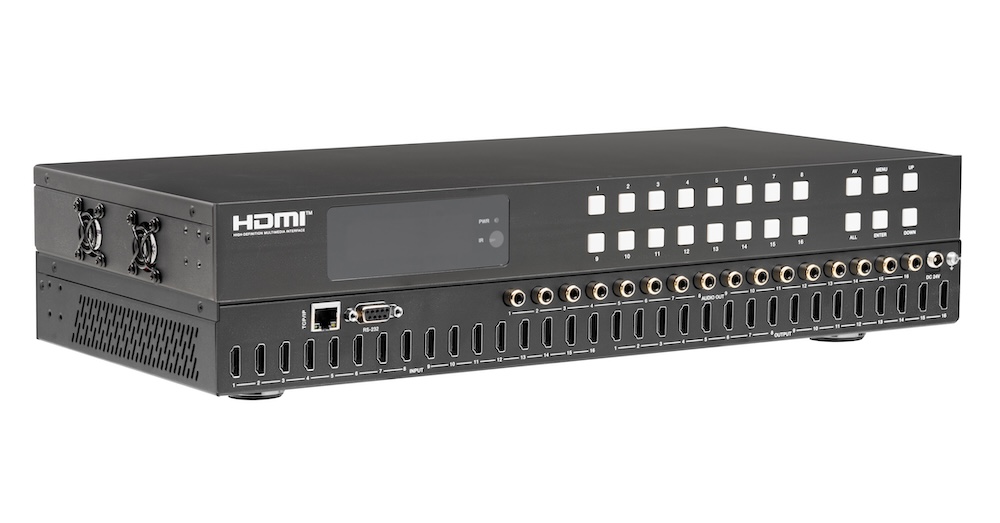
The MMX-16X16AUD routes 16 HDMI 2.0b sources to 16 displays at up to 4K2K@60Hz 4:4:4, with coaxial audio de-embedding and ARC on every output.
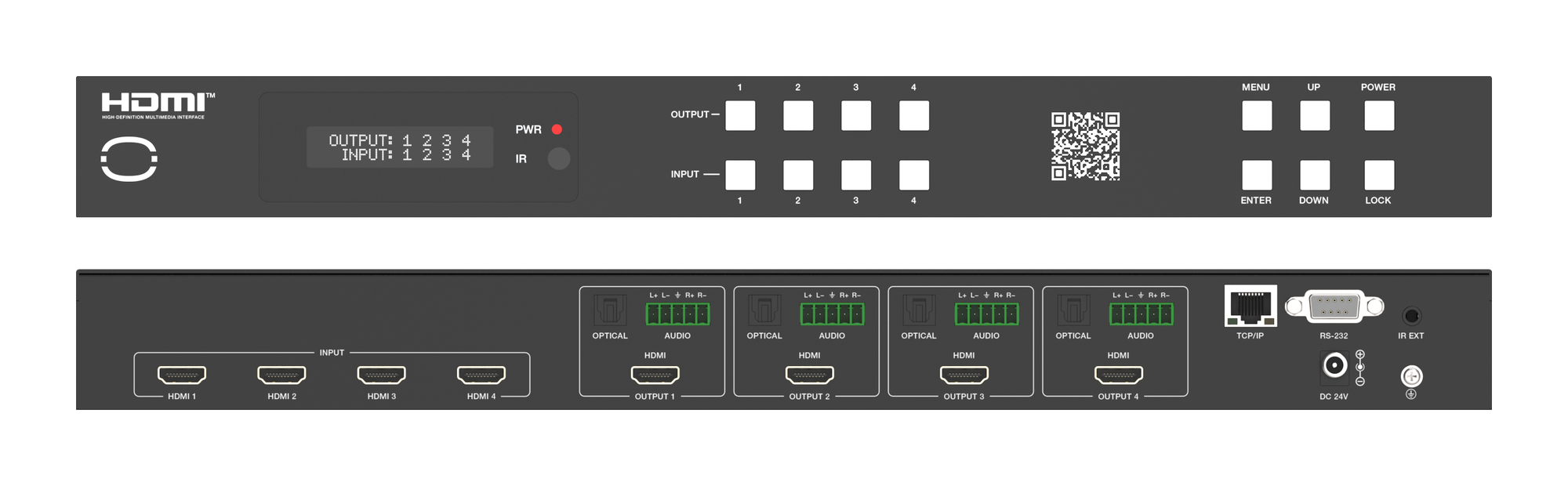
The MMX-4X4-48G routes four HDMI 2.1 sources to four outputs at up to 8K, downscaling and breaking out audio on each output independently.
KanexPro sells direct to dealers, resellers, installers and integrators, and through distribution. Whichever way you buy, the same engineers answer the phone.
The trade store: your own account, live stock, reordering, and a first look at new products.
Go to the trade store →Distribution and authorised resellers across the US and beyond.
See where to buy →Design help on extenders, matrix and AV over IP before you spec it.
Ask an engineer →