SW-5X1PS-70M Audio: Dante, Line Levels and the 3×3 Matrix
SW-5X1PS-70M mixes analog and Dante 2×2 audio in a 3×3 matrix with a 31-band EQ, 0–50ms delay and level on every output, as LPCM 2.0 at 48kHz.


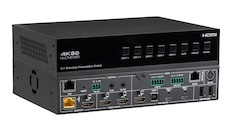 SW-5X1PS-70M
5×1 HDMI/USB-C Seamless Presentation Switch with HDBaseT 3.0 Out — 4K60 to 40m…
Consolidate Five BYOD and Legacy Sources with Seamless Switching, KVM, Dante Audio & HDBaseT…
Product page →
SW-5X1PS-70M
5×1 HDMI/USB-C Seamless Presentation Switch with HDBaseT 3.0 Out — 4K60 to 40m…
Consolidate Five BYOD and Legacy Sources with Seamless Switching, KVM, Dante Audio & HDBaseT…
Product page →
The SW-5X1PS-70M product page has a Demo button, next to Buy Direct. It opens a simulated SW-5X1PS-70M in your browser: the same box page and remote that RelayAV, KanexPro's control app, shows for a real switch. There is nothing to install and no sign-in. Nothing you do there reaches a real box, and Reset puts it back to the start. This article lists what to try and how each part maps to the real switch.
Applies to: SW-5X1PS-70M · Open the demo

The controls people use every day sit in one row: On / Standby for the switch, Screen On / Off for the display, and a volume slider with Mute.
The SW-5X1PS-70M has five sources: USB-C 1, USB-C 2, HDMI 3, HDMI 4 and HDMI 5. Its HDMI and HDBaseT outputs show the same picture, so there is one screen to arrange. Choose a layout (Single, PIP, PBP, Triple or Quad) and tap a source for each window. With Live sources only on, a layout fills its windows with sources that have a picture.
A preset stores the whole setup: the layout, the sources and the sound. The demo has the switch's five presets. Set the room up, tap Save current setup, then tap a preset to bring it all back.
On the Controls tab, Switch to a newly plugged-in source by itself makes the switch show a laptop as soon as it is connected. When the source goes, switch to sets the fallback: Auto, or a fixed input such as the room PC on HDMI 3. The same tab has Blank (picture and sound off) and Freeze (hold the picture), plus volume up, down and mute.
The orange Remote button opens the same controls laid out like a handheld remote: power, screen and sound on top, a preview of what the screen shows, then the presets, the five source buttons and the layouts, with Freeze and Blank at the bottom. It is sized for a phone.

Yes. Amy, the built-in Product Expert, answers questions about this switch: its specifications and wiring, the right setup for a boardroom or meeting room, and what to check when something is wrong. If you ask her to change something, she offers a Do it button, and nothing changes until you press it.
The controls come from the same command set RelayAV uses to run a real SW-5X1PS-70M, so the layouts, presets, auto switching and picture controls behave the way they do on the box. The pictures are simulated. Installer settings such as EDID, HDCP, USB routing, Dante and network setup are left out of the demo; on a real switch they are set once, on the switch's own setup page.
Use the Feedback button at the top of the demo. It goes straight to the KanexPro team, and you can leave an email address or phone number if you would like a reply.
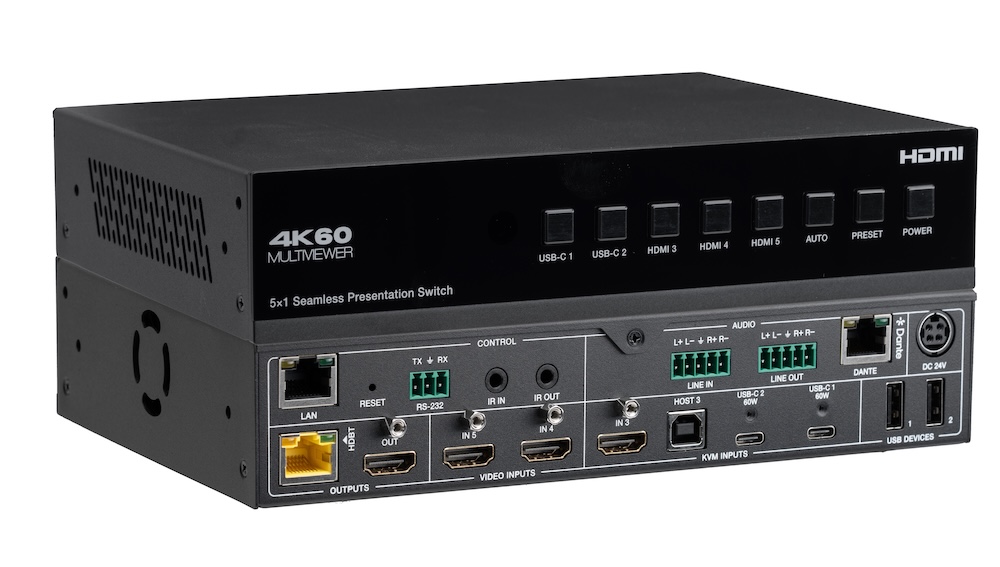
SW-5X1PS-70M mixes analog and Dante 2×2 audio in a 3×3 matrix with a 31-band EQ, 0–50ms delay and level on every output, as LPCM 2.0 at 48kHz.

The SW-4X2PS-70M product page has a Demo button: a simulated switch in your browser. What to try, from layouts per output to presets, the Remote and…
A 5×1 switch for USB-C and HDMI sources with seamless switching, multiview, USB 2.0 KVM, Dante 2×2 audio and a mirrored HDBaseT 3.0 output.
KanexPro sells direct to dealers, resellers, installers and integrators, and through distribution. Whichever way you buy, the same engineers answer the phone.
The trade store: your own account, live stock, reordering, and a first look at new products.
Go to the trade store →Distribution and authorised resellers across the US and beyond.
See where to buy →Design help on extenders, matrix and AV over IP before you spec it.
Ask an engineer →